
The Inventory index screens and display options
The Inventory module is where you manage all your artworks. It opens on an index screen listing your records, with a Query Pane on the right for filtering what you see — see the separate article on finding, filtering and managing records with the Query Pane. :::note The records shown here are controlled by whatever filters are currently set in the Query Pane. :::
The toolbar

- New — create a blank record.
- Load — load several images from a folder at once, then fill in the details for each afterwards.
- Delete — delete the checked records, after a confirmation prompt.
- Select all — check or uncheck every visible record.
- Print — a menu of reports you can run against the current view: Catalogue, Price list, Barcoded Price List, Information sheet(s), Wall labels, Barcode labels, Stock Book, and Contact sheet. See the report viewer for what you can do with the result.
- Slides — open a slideshow of your current filtered view in a new tab.
- The paginator (
<< < page > >>) moves between pages in thumbnail view — first page, previous, next, and last page. In the middle you can see the total number of records that you have (after any filters you set). - There are three view buttons switch between thumbnail, table and groupings view, as above.
- The refresh icon reloads the list.
Switching between thumbnail, table and groupings view
The three view buttons on the toolbar switch how the list is displayed:
- Thumbnail view — a grid of image cards, one per artwork.
- Table or list view — a compact row-per-record list.
- Groupings view — your artworks organised by grouping, rather than as a flat list.
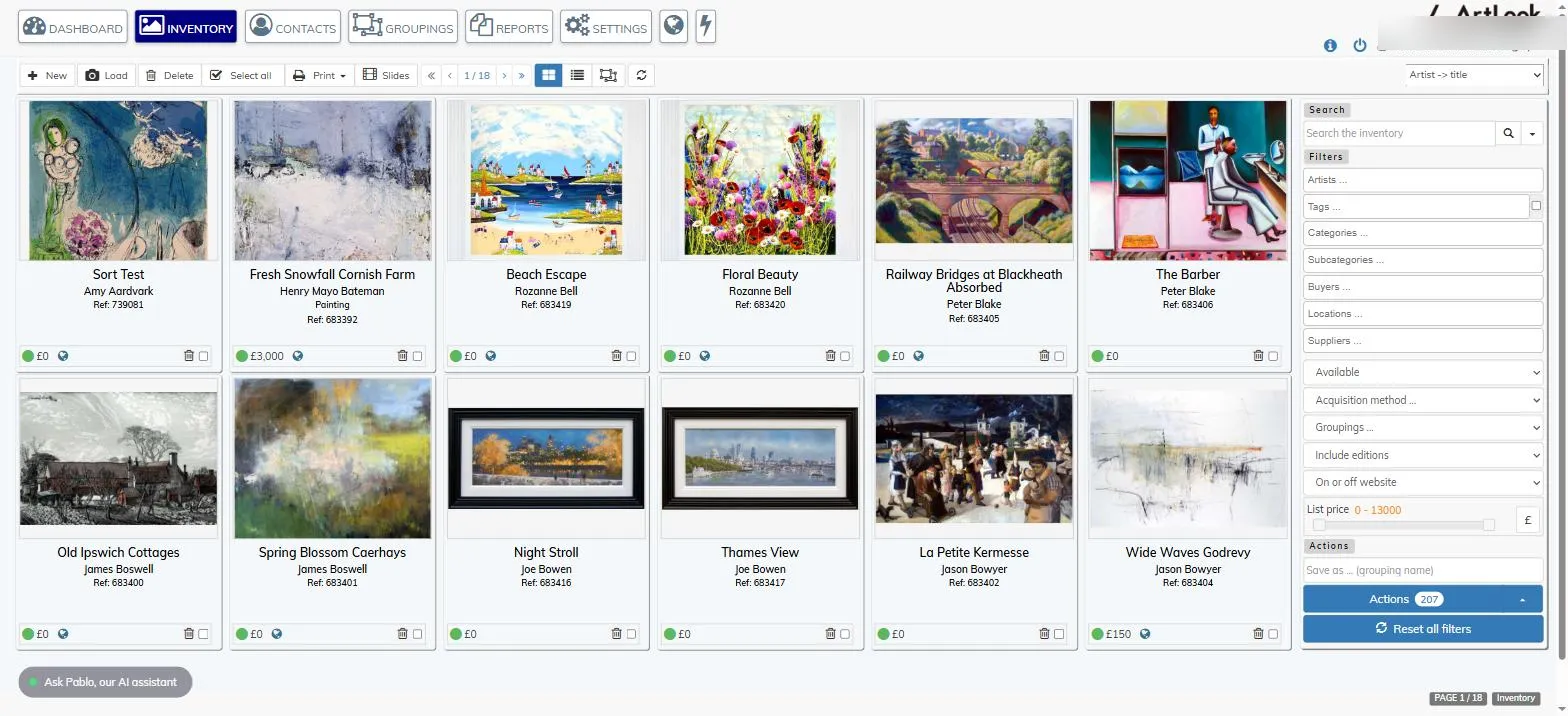
Thumbnail view shows records a page at a time, with page controls on the toolbar. Table view instead loads more records automatically as you scroll down.
Changing the order of records
The dropdown at the top right of the screen (for example “Artist -> title”) controls the sequence records are listed in. Change it to resequence the whole list, independently of any column sort you’ve applied in table view.
The screen footer
At the bottom right of the screen, a small status bar shows your position in the list — for example “PAGE 1 / 52” in thumbnail view, or a count such as “34 groupings” in groupings view — alongside a label confirming which module you’re in.
What a thumbnail card shows
Each card displays the artwork’s image, its title (as a link), the artist’s name, its category (if set, in italics) and its reference number — either your own reference, or, if you don’t use your own, a system-assigned number. Below that, a coloured dot shows its status — green for available, red for sold, orange for reserved — next to the price. Edition items also show a count such as “0/11”, meaning none of the 11 pieces in the edition have sold yet. A globe icon marks that the piece appears on your website. A trash icon and a checkbox sit at the bottom right of the card, for deleting or selecting that record individually. Click the image or title to open the record.
What the table columns show
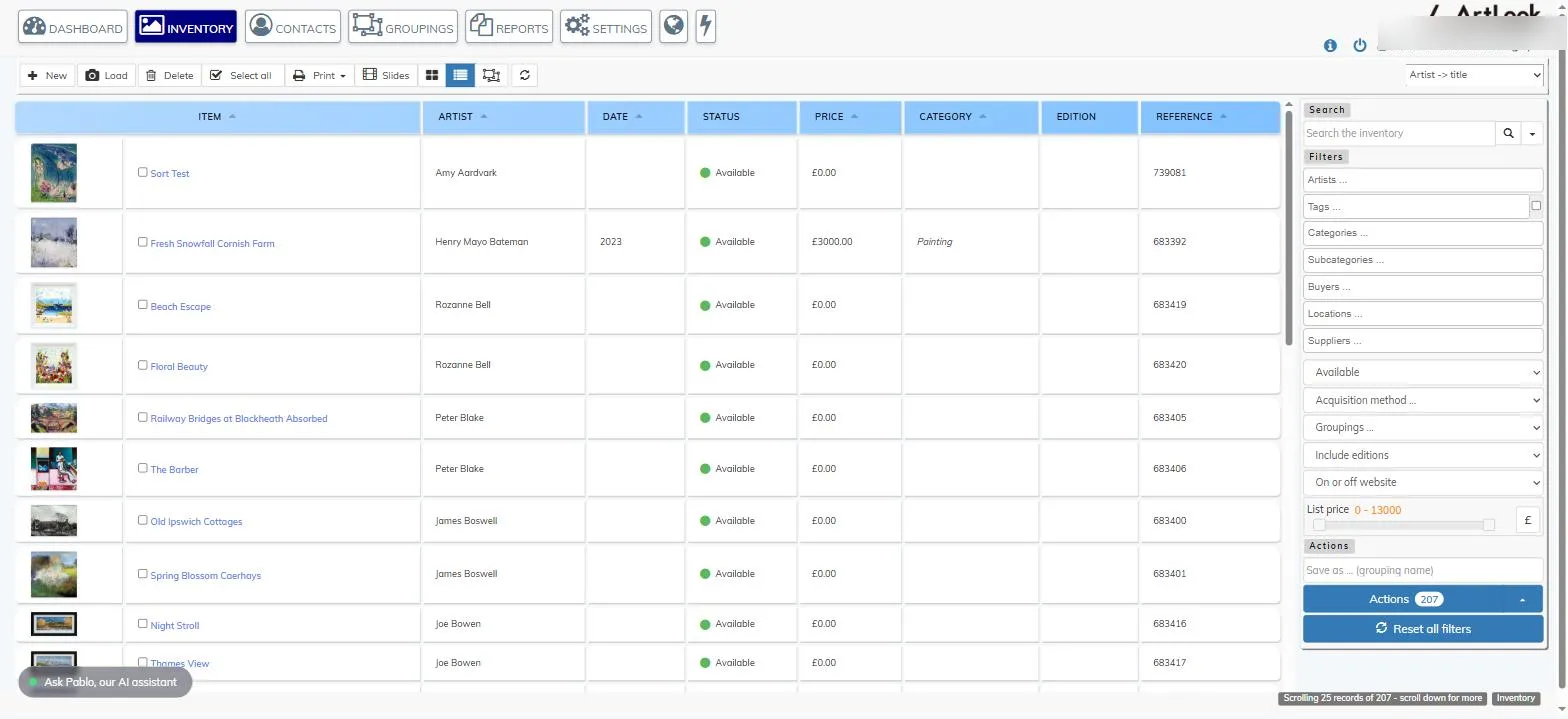
Table view shows Item, Artist, Date, Status, Price, Category, Edition and Reference. Click any column heading to sort by that column; click again to reverse the order. The selection checkbox sits immediately to the left of the title here, rather than at the bottom right of the card as in thumbnail view.
Groupings view
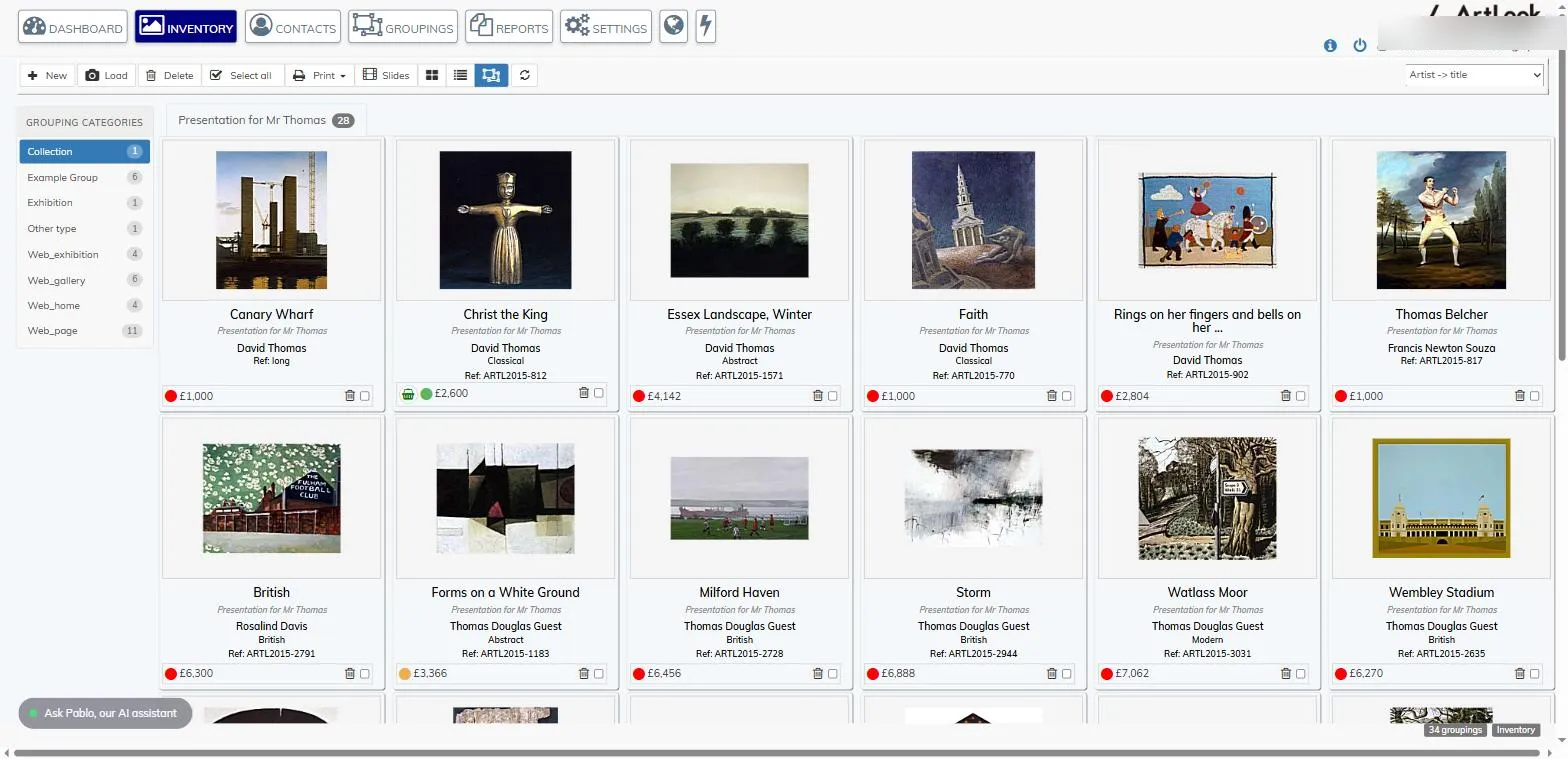
To properly understand the purpose of this view it is important to learn about Artlook’s groupings: see Groupings topics.
The panel on the left lists your grouping categories (for example Collection, Exhibition, Web_gallery), each showing how many groupings it contains. Selecting a category shows its individual groupings as tabs across the top, each labelled with how many artworks it holds; selecting a tab shows those artworks as thumbnail cards. This view doesn’t show the Query Pane, since you’re browsing by grouping rather than filtering.