
General settings
Open Settings from the top navigation to configure Artlook. Settings are grouped into tabs — this article covers the first, General.
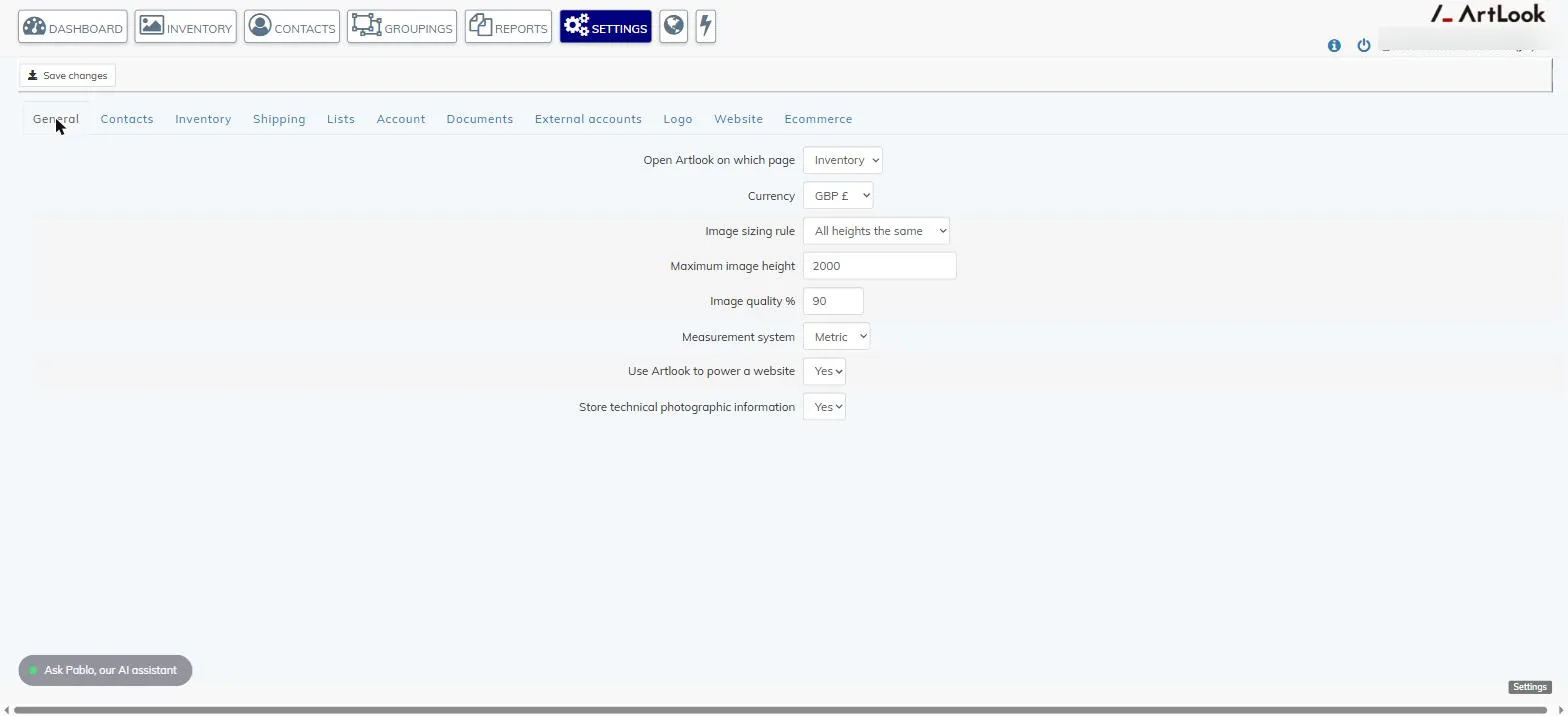
- Open Artlook on which page — which module you land on when you log in: Inventory, Groupings or Contacts.
- Currency — choose from a range of currencies including GBP, EUR, USD, CAD, AUD, INR, NGN, MYR and ZAR. You can’t mix currencies within one account.
- Image sizing rule — how Artlook resizes images you upload for reports and your website: always the same width, always the same height, or by the largest or smallest side.
- Maximum image height — Artlook never enlarges an image, but reduces it to this size if it’s bigger. The maximum file size you can upload is 10MB.
- Image quality % — lower values keep web pages fast to load; higher values keep more image detail.
- Measurement system — Imperial (feet and inches) or Metric (metres and centimetres).
- Use Artlook to power a website — switch this on if you’re using an Artlook website. It adds a Website tab here and a website icon to the top navigation.
- Store technical photographic information — turn this on to have Artlook extract the EXIF data that cameras and smartphones store with a photo, such as when and where it was taken and exposure details. Once it’s on, a Technical Data tab appears on inventory records whenever you load a new image, showing the extracted data — all of it editable.
Don’t forget to click Save changes, and be aware that some settings only take effect after you log out and back in again.