
Finding, filtering and managing records with the Query Pane
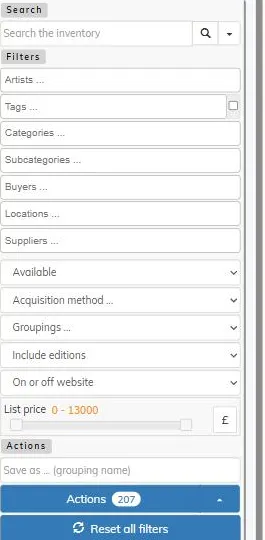
The Query Pane is a powerful filtering tool that controls which of your records are currently in view. It also has several functions to allow you to work with, to change or to report on.
It sits on the right of the Inventory index.
As well as searching, you can limit your view by a large number of parameters all of which can be accumulated together (for example, sold work with a specific category and some specific tags).
Once you have your selection or subset of records you then have the possibilty of carrying out a number of actions on them using the Actions menu here (see Working with the filtered set below).
To return to the full set of records you can click the Reset all filters button here or the reset button in the toolbar above.
Searching
Type into the search box and press the search icon (or Enter) to search across your inventory. The small dropdown arrow next to it lets you choose the scope of your search: Search Everywhere, Search for Artists, Search for Titles, Search for Artwork Ids, Search for Transaction ids, Search for Creation Date or Search for Mediums.
Filtering
Below the search box, the Filters section lets you narrow the list by:
- Artists and Tags — type to search and select as many as you like. For Tags, a small checkbox next to the field switches how multiple tags are matched: unchecked (the default) matches records with any of your selected tags; checked, it matches only records with all of them.
- Categories, Subcategories, Buyers, Locations, Suppliers — type to search and select a value.
- Status — for example available, sold, reserved.
- Acquisition method
- Groupings — restrict the list to records in a particular grouping.
- Include editions — control whether edition items are included.
- On or off website
- List price — drag the slider handles, or type exact values, to set a price range. Use the small currency selector if you price in a different currency.
Filters combine — for example, selecting an artist and a status together shows only that artist’s records with that status. Every field you set is applied immediately, and the Actions button shows a running count of how many records currently match.
Working with the filtered set
Once you’ve filtered the list, the Actions area lets you do more than just look:
- Save as (grouping name), then Actions, offers Save items to new group — saving the records currently matching your filters as a new grouping — and Save criteria to group, which saves the filter criteria itself, so the grouping’s contents update automatically as your inventory changes (referred to as a Dynamic Grouping). An Only selected items option restricts either of these to just the records you’ve individually checked, rather than everything matching the filter.
- Add to existing group — add the current set of records to a grouping you already have, instead of creating a new one.
- Further bulk actions let you add tags, set records to show or not show on your website, bulk edit fields across the whole selection, or return any unsold consigned items in the selection.
- Reset all filters — clears every filter and returns to the full list.