
Finding, filtering and managing records with the Query Pane
The Query Pane is a powerful filtering tool that controls which of your contacts are currently in view. It also has several functions to allow you to work with, to change or to report on.
In Contacts, it’s presented as three tabs — Search, Filters and Actions — to the right of the index.
Search
Type into the search box and press the search icon to search across your contacts. The dropdown arrow next to it lets you choose the scope: Search names, Search surnames, Search record ids, Search addresses or Search emails.
Unlike the Inventory Query Pane, a search here is exclusive: it ignores any filters you have set and shows only its own matches. Use Reset if you want to start again with just your filters, or just your search.
Filters
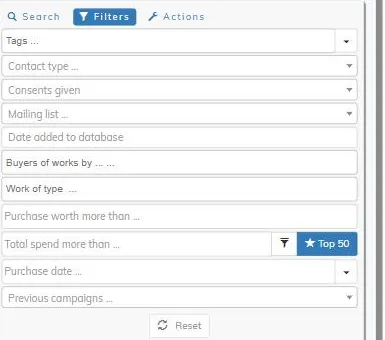
The Filters tab lets you narrow the list by:
- Tags — select as many as you like; a record matches if it has any of the tags you’ve chosen.
- Contact type — Suppliers, Buyers, Other contacts or All contacts.
- Consents given — filter by which marketing consents a contact has recorded.
- Mailing list — whether they’re included on your mailing list.
- Date added to database
- Buyers of works by … — find people who’ve bought work by a particular artist.
- Work of type … — find people who’ve bought a particular type or category of work.
- Purchase worth more than …
- Total spend more than … — with a Top 50 shortcut to jump straight to your highest-spending contacts, and a filter icon for more advanced spend criteria.
- Purchase date
- Previous campaigns — contacts who received a particular marketing campaign.
Filters combine, and every field you set is applied immediately. Use Reset to clear them all.
Actions
The Actions tab lets you work with whichever contacts are currently selected:
- Tag the results — apply a tag to the selected contacts — you can use tags to easily recall contacts of the same tag.
- Invert selection — swap which contacts are selected — show all the contacts not included in your filter.
- Randomise / Reduce — pick a random subset of the selected contacts, useful for sampling.
- Create Campaign — start an email marketing campaign to the selected contacts.
- Print labels — print mailing labels (for posting). See the report viewer for what you can do with the result.
- Export — export the selected contacts as postal addresses or email addresses — see emailing your contacts for the export options.
- Reset — clear the current selection and return the screen to showing all contacts.