
Bulk editing records
You can edit a whole batch of records at once, rather than opening and updating each one individually — by filtering the Inventory index down to the records you want, then applying your changes to all of them in one go.
Filtering to the records you want
Bulk Edit works on whatever the Query Pane’s filters currently match — not on records you’ve individually checked. Use the Query Pane’s search and filters to narrow the index down to the set you want to change, for example every record with a particular tag, category or status. See finding, filtering and managing records with the Query Pane for how filtering works.
Opening Bulk Edit
Once your filters are set, open the Actions menu at the bottom of the Query Pane — it shows a running count of how many records currently match. Under Bulk Actions, choose Bulk Edit.
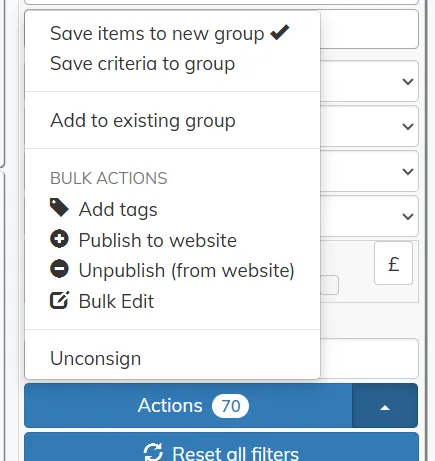
The same menu holds the other bulk actions covered in the Query Pane article — saving the matching records as a grouping, adding tags, publishing or unpublishing from your website, and unconsigning items.
Making your changes
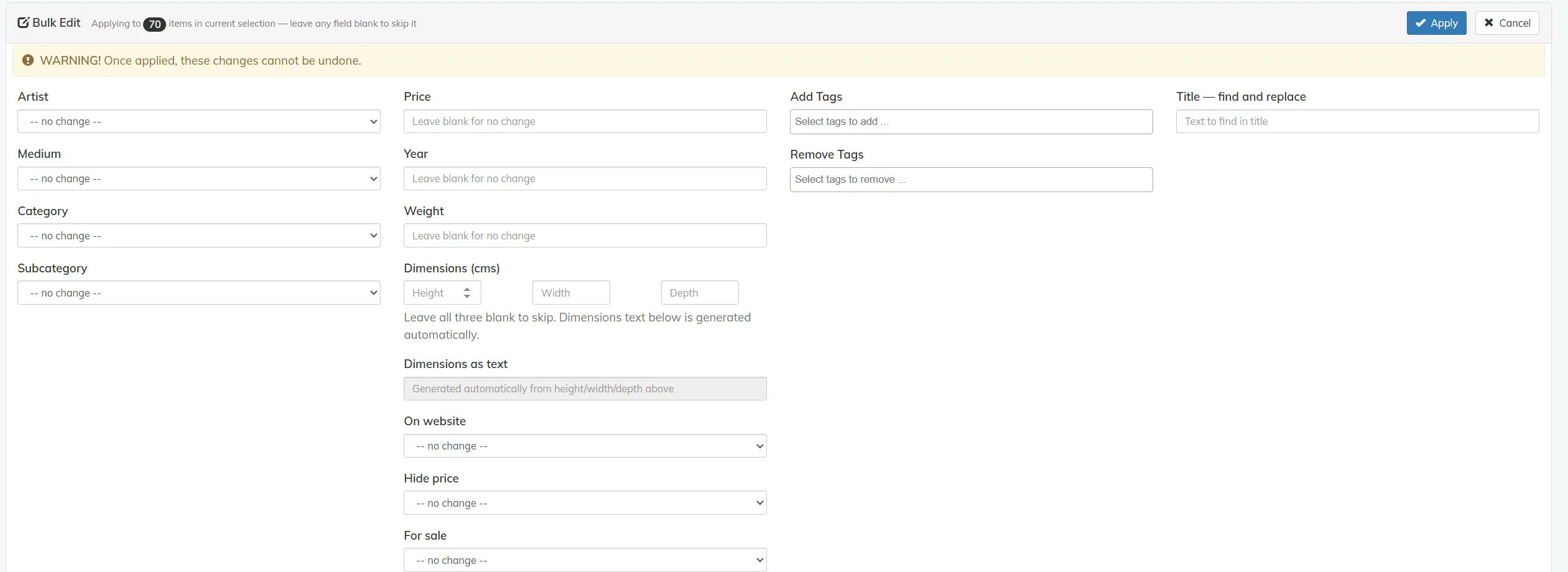
The Bulk Edit screen applies to every record your filters currently match — the count next to Applying to confirms how many. Leave a field blank, or set it to — no change —, to leave that field alone; only the fields you fill in are changed on the matching records.
- Artist, Medium, Category, Subcategory — dropdowns to set the same value across every matching record.
- Price, Year, Weight — type a value to set it on every matching record; leave blank to leave existing values as they are.
- Dimensions (cms) — set Height, Width and Depth together; leave all three blank to skip. Dimensions as text is generated automatically from these and can’t be edited directly.
- On website, Hide price, For sale — dropdowns to set these statuses across the matching records.
- Add Tags / Remove Tags — add or remove one or more tags from every matching record.
- Title — find and replace — find a piece of text within titles across the matching records.
When you’re ready, click Apply. Click Cancel instead if you want to back out without changing anything.