
The Contacts editing screens and tabs: finding your way around
Click a contact’s name from the Contacts index to open it for editing. Which tabs you see depends on the contact’s type, set on the Main information tab.
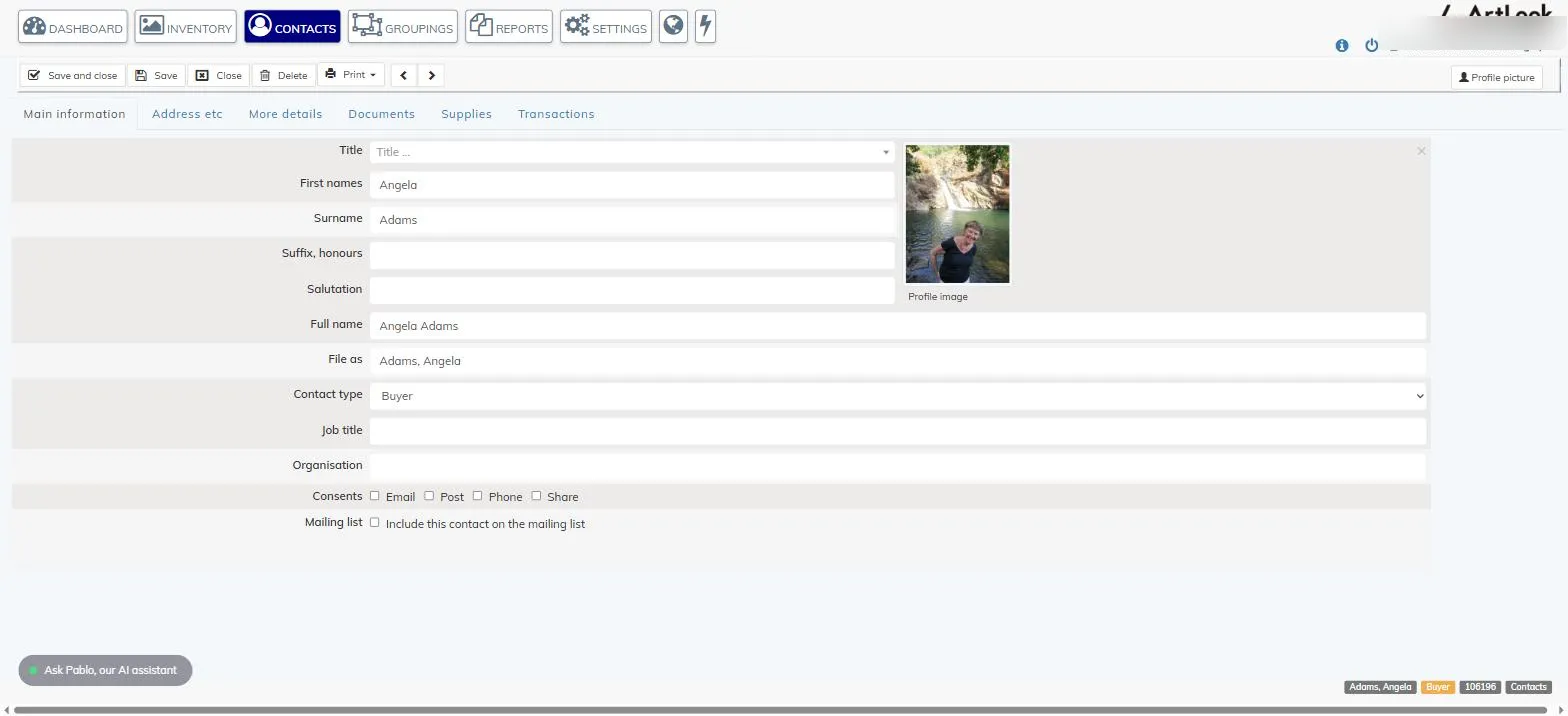
The toolbar
- Save and close — save your changes and return to the index.
- Save — save your changes and stay on the record.
- Close — leave the record without saving.
- Delete — delete this record, after a confirmation prompt.
- Print — a menu of reports for this contact. Common to every contact type are Contact information and Purchases made (in two versions — with or without thumbnails and dimensions). Artist-type contacts add Artist information and an Artist/supplier statement (not settled); other types add an Outward Consignment Summary instead.
- The left/right arrows step to the previous or next contact in your current list, without returning to the index.
- Profile picture, at the top right, lets you add or change the picture shown against this contact. For your own artist record, this is also the image that appears on your public website.
Main information
Name fields (title, first names, surname, suffix, salutation), how the contact is filed and displayed (Full name, File as), job title, organisation, marketing consents, and — for Contact and Buyer-type contacts — whether they’re included on your mailing list.
The four Consents checkboxes (Email, Post, Phone, Share) record whether this contact has agreed to be contacted that way, or to have their details shared — useful for keeping your marketing on the right side of GDPR and similar data protection rules, as well as for keeping your mailing list clean.
New and existing contacts can be set as a Contact or a Buyer. Your own artist record is set up for you automatically and can’t be created or changed here — this version of Artlook assumes all your artworks are your own work, so only one Artist record is allowed. If you represent other artists, the Studio version supports additional artist records.
Address etc
Principal and alternative email, principal and additional phone numbers, website URL, and postal address.
The address field offers two rapid ways to fill it in: start typing and pick a match from the dropdown that appears (works for addresses anywhere in the world), or type the postcode, a comma, and the house number or name, then press Tab or click the envelope icon to have the rest filled in for you (UK addresses only). Either method is only around 90% accurate, so check the result before saving.
Postal address has two tabs — Principal address, and an optional Delivery address for when post should go somewhere different.
More details
Tags, free-text notes, key dates, and tax registration details.
Documents
Upload documents to keep against this contact’s record.
Artist details, Works and Transactions (your artist record)
Your artist record has three extra tabs that other contacts don’t get:
- Artist details — nationality, birthplace, year of birth/death, introduction, artist’s statement, solo and group exhibitions, a representative image, and whether you’re featured on your website.
- Works — a list of your pieces in Inventory, with their status and price.
- Transactions — your transaction history.
Its More details tab also gets one extra field the others don’t: a longer Biographical information field with basic rich-text formatting, for your website’s about or biography content.
Supplies and Transactions (Buyer and Contact-type contacts)
For Buyer and Contact-type contacts, a Supplies tab appears instead of Artist details/Works, listing anything supplied by this contact. A Transactions tab lists their purchase history — what they bought, when, and for how much, including any returns.
The screen footer
At the bottom right of the screen, a row of tags summarises the contact at a glance — name, type and contact ID — alongside a label confirming you’re in the Contacts module.
Many of the individual fields above may be worth explaining in more detail; we’ll come back to those separately.