
The Contacts index screens and display options
The Contacts module holds everyone you deal with — buyers, artists you represent, suppliers, and general contacts. You’ll find your own record here too; please don’t delete it, though you’re welcome to edit its details.
The toolbar

- New — create a blank contact.
- Delete — delete the checked contacts, after a confirmation prompt.
- Select all — check or uncheck every visible contact, or use the individual checkboxes to select just some. The checkbox on a card or row is what Delete acts on.
- The paginator (
< page >, with first/last page buttons either side) moves between pages in card view. - The two view buttons switch between card and table view, as below.
- The refresh icon reloads the list.
Switching between card and table view
Use the two view buttons on the toolbar to switch between:
- Card view — an address-card-style layout, showing one contact per card.
- Table view — a compact row-per-record list.
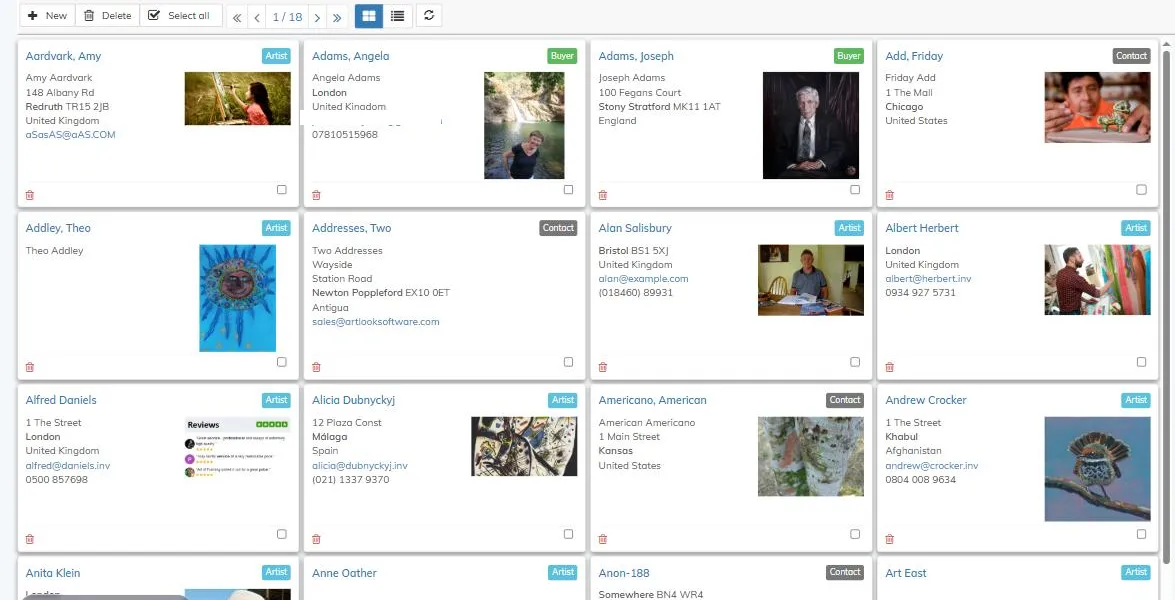
Card view pages through your contacts a page at a time, with page controls on the toolbar. Table view instead loads more records automatically as you scroll down.
Changing the order of records
The dropdown at the top right of the screen (“Default sequence”) controls the order contacts are listed in, independently of any column sort you’ve applied in table view.
The screen footer
At the bottom right of the screen, a small status bar shows your position in the list — for example “PAGE 1 / 18” — alongside a label confirming you’re in the Contacts module.
What a card shows
Each card shows the contact’s name (as a link), a type badge (Artist, Buyer or Contact), their address, and their principal email and phone number where recorded. A trash icon and a checkbox sit at the bottom right of the card, for deleting that record individually. Click the name or the image to open the record.
What the table columns show
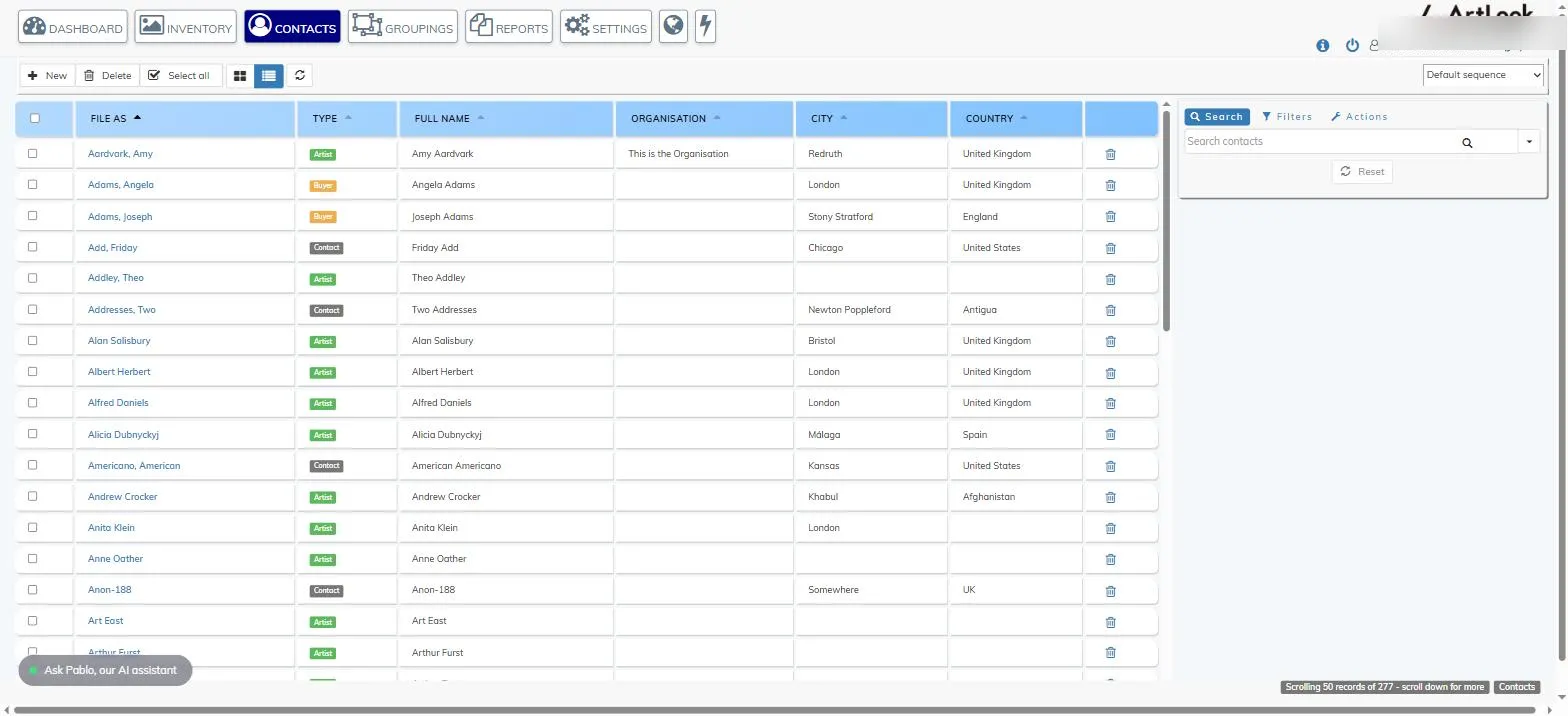
Table view shows File As, Type, Full Name, Organisation, City and Country. Click any column heading to sort by that column; click again to reverse the order.
Search, Filters and Actions
To the right of the list is a panel with three tabs — Search, Filters and Actions. See the separate article on finding, filtering and managing records with the Query Pane for what each of these offers.